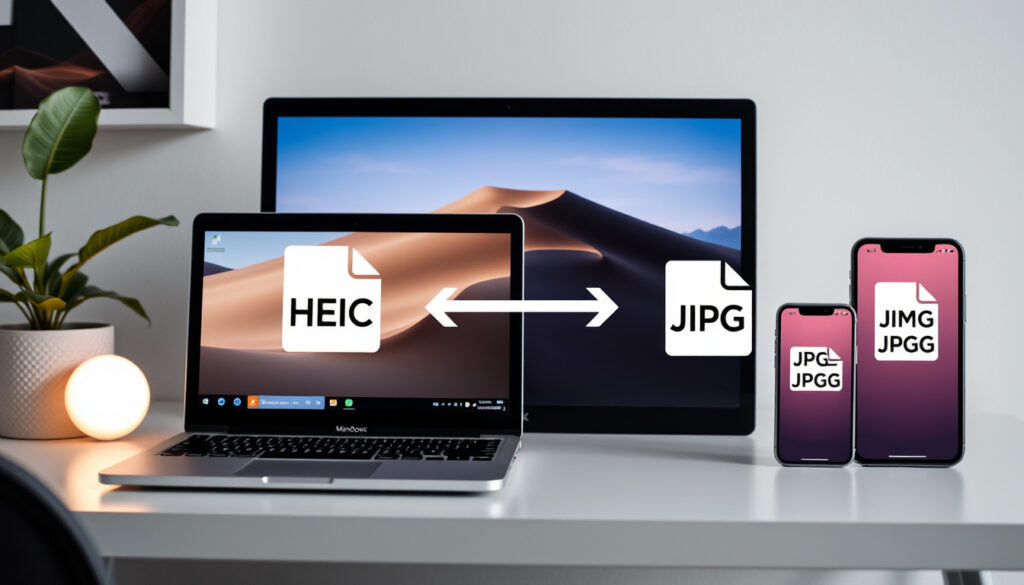
Convert HEIC to JPG – Free Guide for Windows, Mac, iPhone
HEIC files have become the standard photo format for iPhones and newer Apple devices, offering excellent compression that saves storage space without sacrificing image quality. However, compatibility remains a persistent issue across platforms, with many services, applications, and older devices unable to read HEIC files. Converting HEIC to JPG resolves these compatibility challenges while ensuring photographs can be shared, edited, and viewed anywhere.
This guide covers every major method for converting HEIC to JPG, from free online converters to built-in operating system tools. Whether you need to process a single photo or convert hundreds of images in batch, the following sections provide step-by-step instructions for Windows, Mac, iPhone, Android, and web-based workflows.
Each method has distinct advantages depending on your priorities. Online tools offer speed and convenience for occasional conversions, while desktop applications provide greater control and privacy for large photo libraries. Understanding these differences helps you choose the approach that best matches your workflow.
How to Convert HEIC to JPG on Windows
Windows does not include native support for HEIC files, but several free tools enable conversion without requiring internet access. Offline applications process files locally, which protects privacy and allows batch conversion of large photo collections.
Overview of Available Windows Methods
Online
Quick conversions
HEIC.online, HEICConvert
No installation
Offline App
Privacy, batch
reaConverter Lite
Local processing
Microsoft Store
Quick install
HEIC to JPG Batch
Easy setup
PowerToys
Advanced users
Microsoft PowerToys
Metadata support
- JPG files remain compatible with virtually all devices, websites, and software applications
- HEIC format uses advanced compression but lacks support on Windows 10 and older systems
- Batch conversion tools like reaConverter Lite process entire folders while preserving subfolder structure
- Quality settings between 90-100% minimize visible differences from the original HEIC files
- Metadata including dates, locations, and camera information can be retained during conversion
- The native Windows Photos app does not offer true batch conversion functionality
- PowerToys requires installing the HEIF extension from the Microsoft Store for image support
Step-by-Step: Using reaConverter Lite
reaConverter Lite provides a straightforward offline solution for Windows users who need to convert multiple HEIC files to JPG format. The free version handles batch processing with customizable quality settings.
Begin by downloading the application from the official website. After installation, drag your HEIC files or entire folders directly into the application window. The software maintains your folder structure during processing.
Select JPG as your output format, then adjust the quality slider to your preferred setting—values between 80-100% typically provide the best results. Enable the option to preserve EXIF and IPTC metadata if you want to keep dates, locations, and camera information intact.
| Setting | Recommended Value | Effect |
|---|---|---|
| Output Format | JPG | Universal compatibility |
| Quality | 90-100% | Minimal quality loss |
| Metadata | Keep Original | Preserves dates and location |
| Processing Mode | Keep Structure | Maintains folders |
| HEIC Support | Auto-detect | Handles all HEIC variants |
| Naming | Original + suffix | Avoids overwrites |
Choose your output folder and naming convention, then initiate the conversion. The application processes files locally, meaning your photos never leave your computer during conversion.
For sensitive photo collections, offline tools like reaConverter ensure files never upload to external servers. Online converters may retain copies temporarily, so verify each service’s data handling policy before processing private images.
Free Online HEIC to JPG Converters
Browser-based converters offer the fastest way to transform HEIC files without installing software. These tools work across all operating systems and handle everything from single photos to batches of hundreds of images.
Top Browser-Based Tools
HEIC.online supports drag-and-drop uploads of up to 100 files or entire folders. The service processes conversions in seconds and automatically deletes files after one hour. A QR code option facilitates mobile downloads for users transferring photos to phones or tablets.
HEICConvert.com provides unlimited batch conversions directly in your browser without server uploads. This approach enhances privacy since files never leave your device during processing. The tool supports Windows, Mac, Android, and Linux systems equally well.
Picflow offers an ad-free experience with drag-and-drop functionality for multiple files. Converted images download as a single ZIP archive, simplifying the process of handling large batches. The service emphasizes fast, private processing with no account requirements.
9Pic AI delivers high-quality JPG output for single files or bulk conversions without requiring upload or account registration. The straightforward interface makes it accessible for users who need quick results without navigating complex options.
Choosing an Online Converter
Consider several factors when selecting an online HEIC to JPG service. Privacy ranks highest for users processing personal photos—verify whether the service processes files locally or uploads them to servers. Some services delete files immediately after conversion, while others retain copies for varying periods.
File size and quantity limits vary significantly between providers. Free tools typically cap individual file sizes or total batch quantities. For professional use or large photo libraries, premium tiers may offer higher limits, faster processing, or additional features like custom output quality settings.
Online converters require an internet connection and introduce inherent privacy considerations since files are uploaded to external servers. For sensitive content, offline methods provide better data protection. Always review a service’s privacy policy before uploading personal photographs.
How to Convert HEIC to JPG on iPhone
iPhone offers several built-in methods for converting HEIC photos to JPG format, eliminating the need for third-party applications in most situations. These native options process files directly on your device, maintaining privacy and convenience.
Using iPhone Settings
Apple provides a setting that forces all exported and shared photos to convert automatically to JPG format. Navigate to Settings, then select Photos. Look for the option labeled “All Photos as JPEG” or similar phrasing depending on your iOS version, and enable it.
When this setting is active, sharing any photo from your iPhone automatically converts it to JPG format. The original HEIC remains in your library while the shared version becomes universally compatible. This approach works seamlessly with AirDrop, Messages, Email, and third-party applications.
Converting Individual Photos via Files App
For converting individual images without changing your global settings, the Files app provides a straightforward solution. Open the Files app and locate your HEIC photo, then tap the Share button. Select “Save as JPG” from the available options to create a JPG copy in your chosen destination folder.
This method preserves your original HEIC file while generating a new JPG version. Dates and metadata transfer automatically to the converted file, ensuring your photo library maintains accurate information.
Batch Conversion on iPhone
Processing multiple HEIC files on your iPhone requires the Shortcuts app or browser-based tools. The Shortcuts application allows creating automation workflows that batch-process photos, though configuration requires some setup time.
Safari-based converters like HEIC.online and Picflow work directly in your mobile browser. Open the website, drag files from your Photos library, and download the converted JPGs as a ZIP archive. This approach handles dozens of photos efficiently without installing additional applications.
When exporting photos from iCloud.com on a computer, look for the download icon which automatically converts HEIC images to JPG format during the download process. This built-in conversion provides another no-install option for accessing your photos in universal format.
Convert HEIC to JPG on Mac
Mac computers include excellent built-in tools for converting HEIC to JPG, with the Preview application handling batch processing while preserving important metadata. No additional software installation is required for most users.
Batch Conversion with Preview
The Preview application on macOS handles HEIC files natively and supports batch export to JPG format. Open Finder and select multiple HEIC files by holding Command while clicking each filename. Right-click the selection and choose “Open with Preview” to launch the batch editing interface.
Within Preview, access the File menu and select “Export Selected Images.” Choose JPEG from the format dropdown, adjust the quality slider to your preference, and select your destination folder. Click “Choose” to begin the batch conversion process.
Preview preserves EXIF metadata during conversion, including capture dates, camera information, and location data. The application maintains your selected images in their original HEIC format while creating new JPG copies, ensuring no data loss occurs.
Automatic Import Conversion
For users who prefer avoiding HEIC format entirely, macOS Photos includes an option to automatically convert imports to JPG. Open Photos, navigate to Photos > Settings (or Preferences on older versions), and locate the Advanced settings. Enable the option to convert imports to JPG.
This setting affects only new imports—existing HEIC files remain unchanged. When connecting your iPhone or importing photos from storage, macOS automatically creates JPG copies rather than preserving the original HEIC files.
Quick Look and Third-Party Options
Mac’s Quick Look feature (pressing Space on selected files) displays HEIC images correctly, but does not offer conversion functionality. Users seeking more advanced features may consider third-party applications available through the Mac App Store, though the built-in Preview tool meets most needs adequately.
HEIC to JPG Conversion on Android
Android devices do not include native HEIC support, requiring external tools to handle conversions. Browser-based converters provide the most accessible solution for most Android users without installing dedicated applications.
Browser-Based Conversion
Chrome and other Android browsers can access the same online converters available on desktop computers. Open HEICConvert.com or Picflow in your browser, then drag photos from your device’s file manager into the conversion interface. The converted files download directly to your device or cloud storage.
Mobile browsers handle batch uploads effectively for most use cases, though extremely large collections may experience performance limitations compared to desktop processing. Most services complete conversions within seconds for typical photo collections.
Android Applications
Several applications in the Google Play Store specifically address HEIC to JPG conversion needs. Search for “HEIC to JPG” to find options ranging from simple converters to full-featured photo management tools. These applications offer offline processing for users who prefer not to upload photos to web services.
When selecting an Android application, review permissions carefully. Legitimate converters typically require only storage and internet access. Applications requesting excessive permissions should be approached with caution.
Before installing HEIC converter applications from the Play Store, verify the developer’s reputation and read user reviews. Some applications may include advertising, in-app purchases, or collect usage data. Download statistics and review patterns can indicate reliable options versus potentially problematic tools.
Understanding HEIC to JPG Conversion
The decision to convert HEIC files involves weighing format differences, use case requirements, and workflow preferences. Understanding the established facts and remaining variables helps make informed choices about when and how to perform conversions.
What Is Confirmed and Reliable
- All documented conversion methods produce functional JPG files readable across devices and platforms
- Quality loss during conversion remains minimal at settings of 90% or higher
- Batch conversion capabilities exist across all major platforms through various tools
- Metadata preservation depends on specific tool settings rather than format constraints
- JPG files universally open in web browsers, image editors, and social media platforms
Variables That May Affect Results
- Metadata retention varies between conversion tools; always verify file properties after processing
- Some older HEIC files using unusual compression variants may require specific tools
- Quality differences between original HEIC and converted JPG are imperceptible at recommended settings
- Processing speed depends on file size, quantity, and device capabilities
Why Convert HEIC to JPG?
HEIC format delivers superior compression, storing photos at roughly half the file size of equivalent JPG images while maintaining comparable quality. Apple adopted HEIC as the default format starting with iOS 11, recognizing these efficiency advantages for storage-constrained mobile devices.
However, JPG remains the established standard across the broader technology ecosystem. Websites, printing services, email providers, and social media platforms universally support JPG without requiring special handling. Converting to JPG eliminates compatibility barriers when sharing photos outside the Apple ecosystem.
For professional photographers, graphic designers, and users working across multiple platforms, JPG format simplifies workflows. Images edited in software like Adobe Photoshop or shared via content management systems benefit from guaranteed compatibility. The slight file size increase typically presents minimal storage concerns compared to workflow advantages.
Sources and Expert Guidance
Documentation for conversion methods comes from multiple sources including official software documentation, user community discussions, and technical analysis of available tools. Platform-specific guidance from Apple support resources provides authoritative information about iOS and macOS functionality.
User community discussions on Apple support forums highlight practical challenges with HEIC compatibility and preferred solutions across different workflows. Multiple users report success with built-in export options for standard use cases, while those requiring batch processing often turn to third-party tools.
Technical specifications for HEIC format are documented through Apple’s developer resources, though specific conversion implementations vary between tools. Testing small batches before committing to larger workflows helps verify that selected methods meet individual requirements for quality, metadata handling, and processing speed.
Summary
Converting HEIC to JPG format remains straightforward across all major platforms, with free options available for every operating system. Online converters provide the fastest path for occasional conversions, while desktop applications offer enhanced privacy and batch capabilities for larger photo libraries.
Windows users benefit from reaConverter Lite for offline batch processing, while Mac owners can leverage the built-in Preview application. iPhone users have native settings and Files app options, and Android users can access browser-based tools or dedicated applications. For those exploring similar measurement and science topics, the Colours of the Rainbow – ROYGBIV Order and Science Explained guide offers additional technical insights.
Frequently Asked Questions
Can I convert HEIC to JPG in Canva?
Canva supports direct HEIC upload and imports these files by converting them internally to JPG or PNG equivalents. No separate conversion step is required before editing. For batch processing, pre-converting files using online tools before bulk uploading provides more efficient workflow management.
How do I keep the original date when converting HEIC to JPG?
Most conversion tools preserve EXIF metadata including capture dates. In reaConverter, enable the option to keep original metadata. Preview on Mac maintains dates natively. Online tools like HEIC.online and Wondershare also support metadata retention. Verify results by checking file properties after conversion.
Does converting HEIC to JPG reduce image quality?
At quality settings of 90-100%, visible quality differences are imperceptible for most photographs. HEIC’s advanced compression provides efficiency advantages, but JPG at high quality settings delivers acceptable results for all standard uses including printing and digital sharing.
Is it safe to use online HEIC converters?
Reputable online converters process files securely and delete them after conversion. However, inherent privacy considerations exist when uploading photos to external servers. For sensitive content, offline tools provide better protection. Always review privacy policies and use established services with clear data handling practices.
How many HEIC files can I convert at once?
Online tools typically support 100 files per batch, with some offering unlimited conversions. Desktop applications like reaConverter handle unlimited files with full folder structure support. Mobile browsers may have performance limitations with very large batches.
Do I need an internet connection to convert HEIC files?
Offline tools like reaConverter for Windows, Preview for Mac, and Android applications work without internet access. Online converters require an active connection but offer convenience without software installation. Choose offline methods when privacy is a priority or reliable internet access is unavailable.
Will converted JPG files work on all websites and apps?
JPG format maintains universal compatibility across all platforms, websites, and applications. No known restrictions exist for JPG files in standard web environments, printing services, or social media platforms. This universal support represents the primary reason users convert from HEIC.
More related posts
 Melvyn Hayes: Actor, Pub Landlord, Foster Father of 50
 Sidharth Malhotra: Biography, Net Worth, and Wife Kiara Advani
 What Time Does McDonald’s Breakfast End? Hours in US & Ireland
 ADHD Signs: 12 Symptoms, Red Flags, and How to Recognize Them
 Africa Cup of Nations – Standings, Winners and 2026 Preview
 David Laid: Biography, Height, Deadlift, Diagnosis, Career
 Best Restaurants Near Me Open Now in Dublin: Top Picks
 Europa Conference League Games – 2024/25 Schedule and Fixtures